
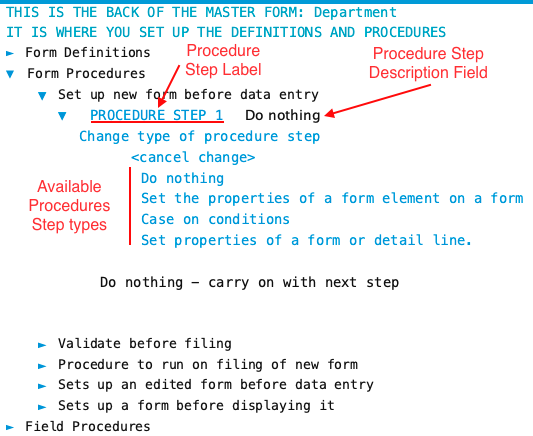

Procedure steps are actions that can be performed by either form procedures or field procedures. Depending on the procedure a small set of procedure step types are available.
Form procedures and Field procedures can have as many steps as you need. Each step performs a single action.
Do Nothing is a default procedure step for all form procedures and field procedures on new master forms. This enables you to quickly sketch out a master form with fields without having to worry about dealing with procedures.
See Form Procedures to learn about accessing Procedures.
Step Numbering
Each procedure step is numbered starting with Step 1. As you add steps the number increases. If you insert a step between steps the numbers are adjusted appropriately.

Step Description
Each procedure step has a description field which defaults to the title of the procedure step type selected. Click on the procedure step description field to edit.
Design Tip:
Enter descriptions that tell what the procedure does. This helps later when reviewing the procedures of a form. You can just read the descriptions without having to open the procedure step.
Adding/Deleting/Moving Procedure Steps
The edit controls for procedure steps are located to the far right of the Procedure Step description. The edit controls only show for closed procedure steps when you click directly on the ‘PROCEDURE STEP ‘ label.
Click the "plus-up/down arrow" edit control to add a new procedure step above or below the current step. Step are automatically numbered as they are added.
Click the "up/down arrow" edit control to shift a step up or down. Step numbering is adjusted as step order is rearranged.
Click the "X" edit control to delete the procedure step. Step numbering is adjusted accordingly. Procedure Step 1 can not be deleted if it is the only procedure step. Change it to ‘Do Nothing’ step type if you no longer want the current procedure step action.

Editing The Procedure Step
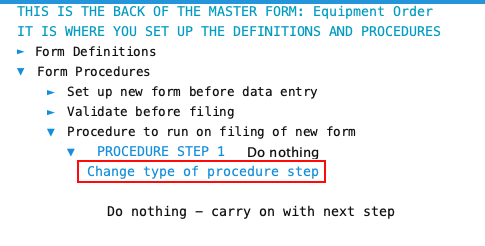
To change the procedure step type open the procedure step and then click on ‘Change type of procedure step’ to open the list of available types.

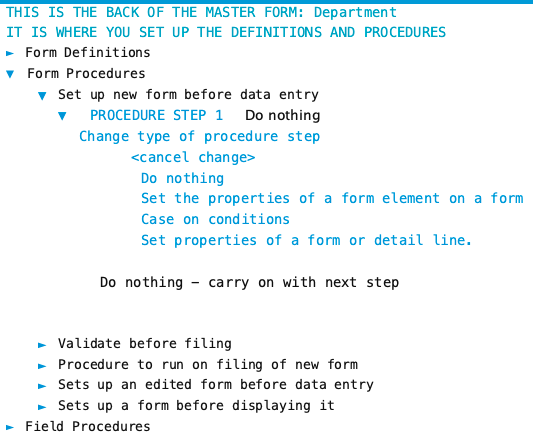
For example, the ‘Set up new form before data entry’ form procedure has the following procedure step types available.

Use ‘Cancel Change’ to revert back to the previous procedure step type settings if you change your mind. This only works while you are actively editing the procedure step. Once you switch to another procedure or procedure step or save the master form reverting you can not revert.
Articles
- Attach A Form Stack To The Form
- Case on conditions
- Create form or detail line
- Display a list of associated forms
- Do nothing
- File this form
- Process a form stack
- Produce a report for this form
- Produce an export for this form
- Prorate A Value Over Detail Lines
- Set properties of a form element on a form
- Set properties of a form or detail line
- Start or stop timer